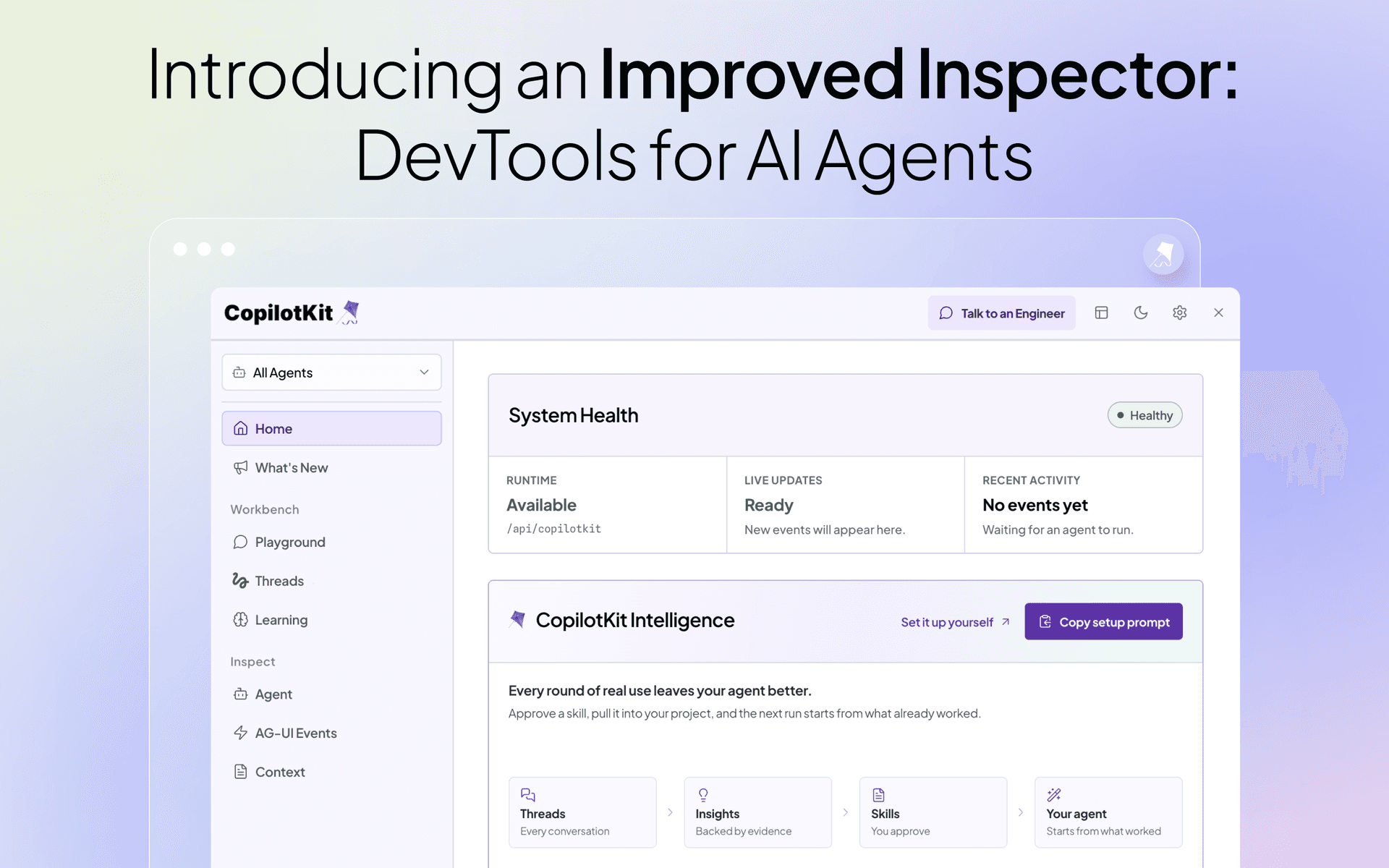
We're excited to launch the new Inspector - Developer Tools for AI agents.
Agents broke the debugging model we've relied on for decades. They stream tokens, call tools mid-response, delegate to subagents, and are long-running by design. The whole thing is a black box.
The Inspector changes this. It runs inside your app and shows every event between your agent and your frontend as it happens, with the failure linked to the event behind it, and an isolated Playground to fork any saved conversation and try a different path.
Everything flows through AG-UI (Agent-User Interaction Protocol), the standard protocol connecting agents to user-facing apps.
The inspector now has a direct connection to CopilotKit Intelligence, which powers Threads, analytics, and enables self-learning for agents from the insights gained from agent-user interactions. Each Insight becomes a SKILL.md you review, edit, and ship with your project.
It turns on automatically in development, and works across React, Vue, and Angular. If you're already using CopilotKit, run npm update to get this release.
# Scaffolds a new project with CopilotKit and includes the latest Inspector
npx copilotkit@latest createIt's already on by default in the CopilotKit provider.
import { CopilotKit } from "@copilotkit/react-core/v2";

<CopilotKit runtimeUrl="/api/copilotkit">
  <YourApp />
</CopilotKit>
Don't want it? Same prop in all three frameworks:
// React
<CopilotKit runtimeUrl="/api/copilotkit" enableInspector={false}>

// Vue
<CopilotKitProvider runtime-url="/api/copilotkit" :enable-inspector="false">

// Angular
provideCopilotKit({ runtimeUrl: "/api/copilotkit", enableInspector: false })
The Inspector never loads in production or during server rendering, and setting the flag to true doesn't change that.
Here's everything we added!
With CopilotKit Intelligence connected, your agent extracts insights from real conversations and starts improving on its own.
Threads → Insights → Skills → your agent
Learning reads the runs behind your saved threads, finds patterns across them, and writes each one out as a SKILL.md you approve before it ships. It stores them in Learning containers you choose, so a container can be one user, one team, or the whole org.
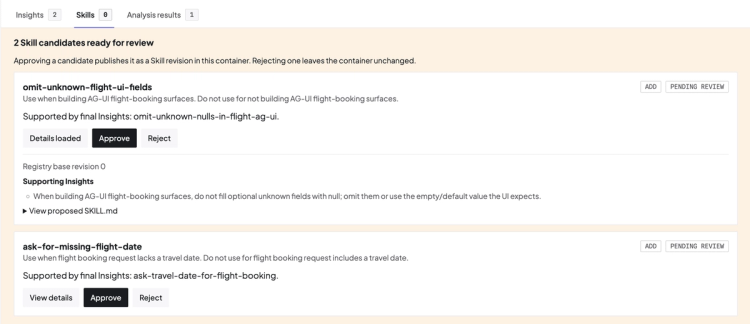
For example:
Let's say your agent keeps getting asked to schedule meetings, and across those conversations people keep steering it the same way: look at both calendars, come back with a few options, don't book anything without asking. Learning reads those runs, finds the pattern, and writes meeting-scheduling/SKILL.md. Now the next run uses that skill.That's just one example. With more agent-user interactions, more patterns get found and your agent keeps getting better.
If you want to dig deeper, Atai wrote about why self-improvement is the moat and how the learning loop works underneath.
Testing an agent usually means talking to it through your own app and filling your chat history with junk.
The Playground is an isolated tab that runs on your app's actual runtime, with any agent you have connected. Spin up as many threads as you want, find errors, try the weird edge cases. None of it reaches your app's chat or its saved conversations.
Playground threads disappear when your local session ends, unless Intelligence is connected to keep them.
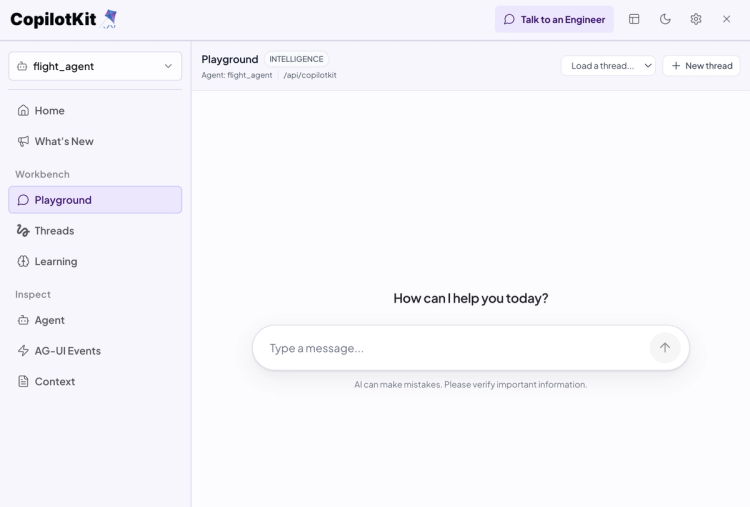
You can now take any stored conversation, fork it into the Playground, and pick up where it stopped.
This is the fastest way to reproduce a bug a user hit. Find their thread, try a different path, and their data stays exactly as it was.
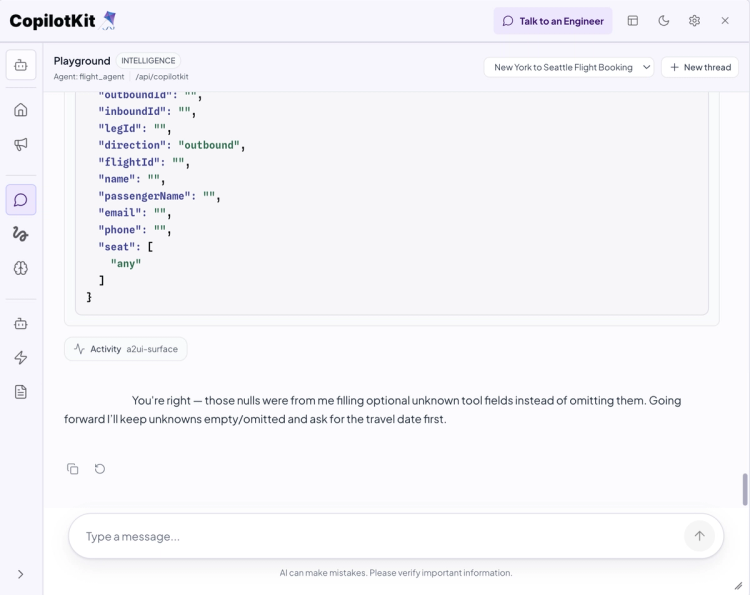
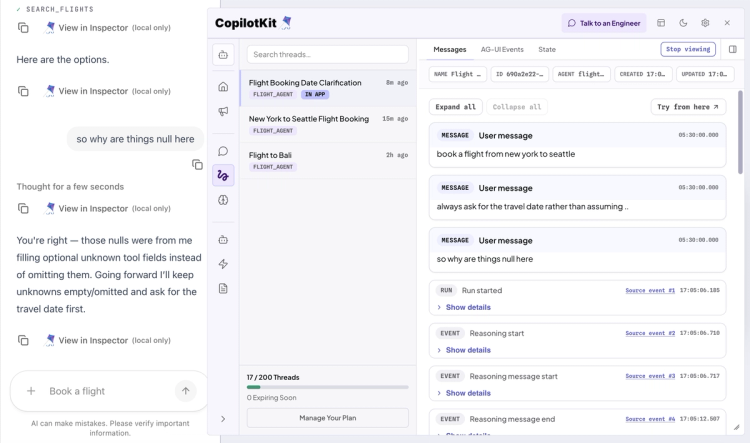
Every conversation the Inspector has stored shows up in the Threads pane. Click View in your app on any of them, and it loads into your app's chat, so you see it the way your user saw it. The thread gets tagged IN APP while it's active, and Stop viewing puts you back.
It works the other way too. Any assistant message in your app has a View in Inspector action that opens the matching thread and jumps to that message. That button only shows up in local development.
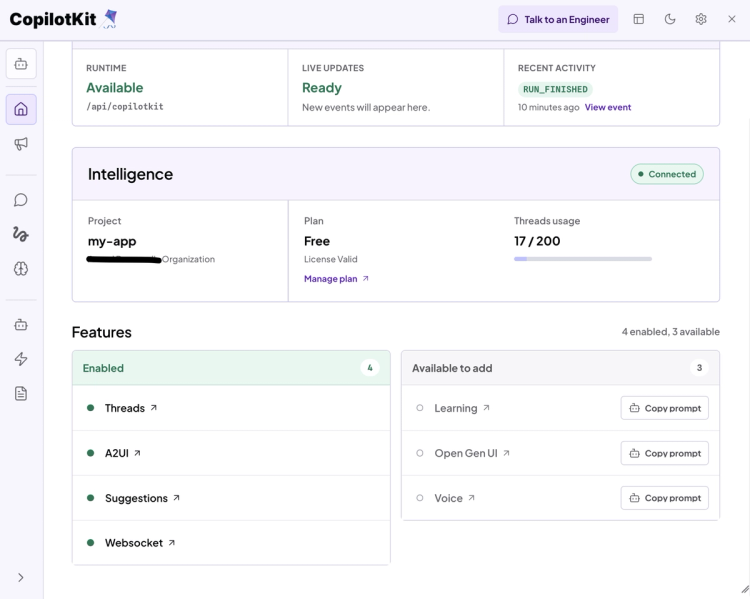
The Features section on Home now shows what's enabled and what's available to add. Anything you haven't set up yet, like Learning, Threads, Open Generative UI or Voice, comes with a Copy prompt button.
Paste it into Claude Code, Codex or any other assistant and it handles the setup for you.
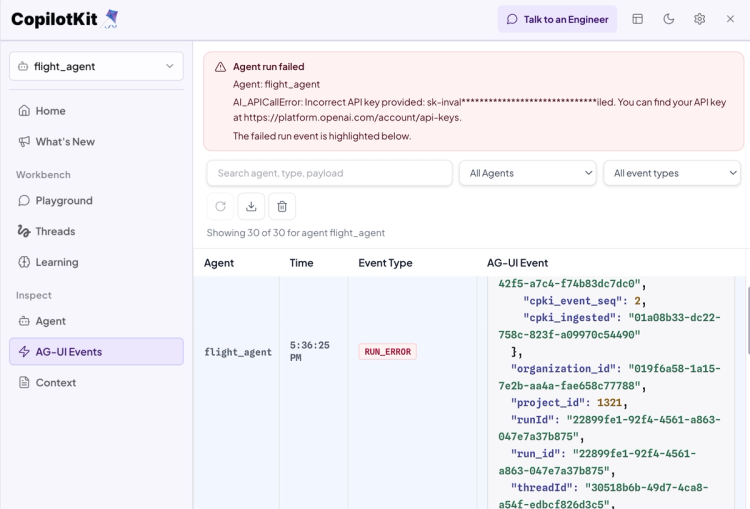
When your agent stops responding, the error usually goes to the browser console and nothing tells you whether the runtime never got the request or your agent failed while handling it.
Now the floating button turns red and names it: Runtime error, Agent run failed, Tool error. Home shows Needs attention with the failing event linked from Recent Activity. You can view the full payload of the failed event on the AG-UI events page.
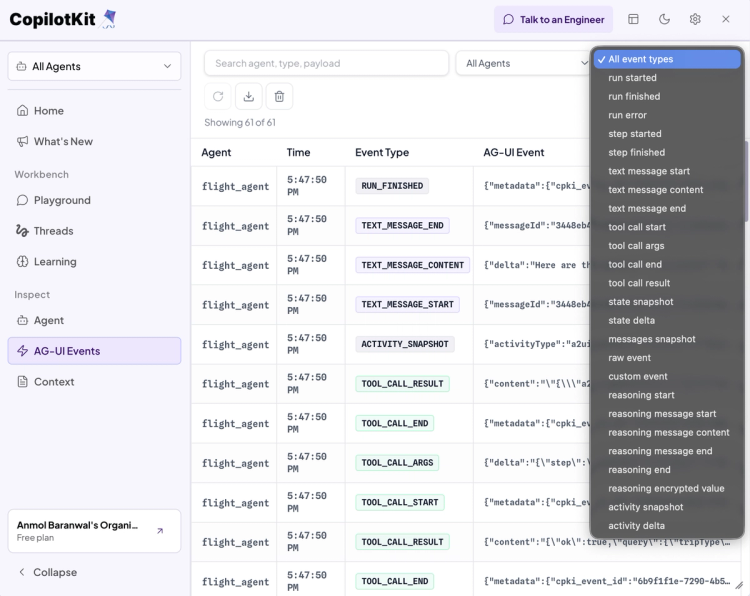
AG-UI Events streams every event between your frontend and your agent as it happens. You can filter those events, search the payloads, clear the list, or export the whole stream as JSON to attach to a bug report. Run and step lifecycle events show up as their own events, so you can see where a run slowed down or stopped, and custom event types you define also show up.
Agent Panel shows the live picture for whichever agent you have selected: total events, messages, tool calls and errors, plus Current State and Current Messages with every role and tool call in the run.
Context Panel shows everything being passed into the agent on this run, so you can check what it actually received.
You can float the Inspector or open it in its own browser window so it sits beside your app instead of covering it, or dock it to the left. Hovering the floating button brings up shortcuts to Threads and Intelligence, plus the status of Rich Threads and Automatic Learning.
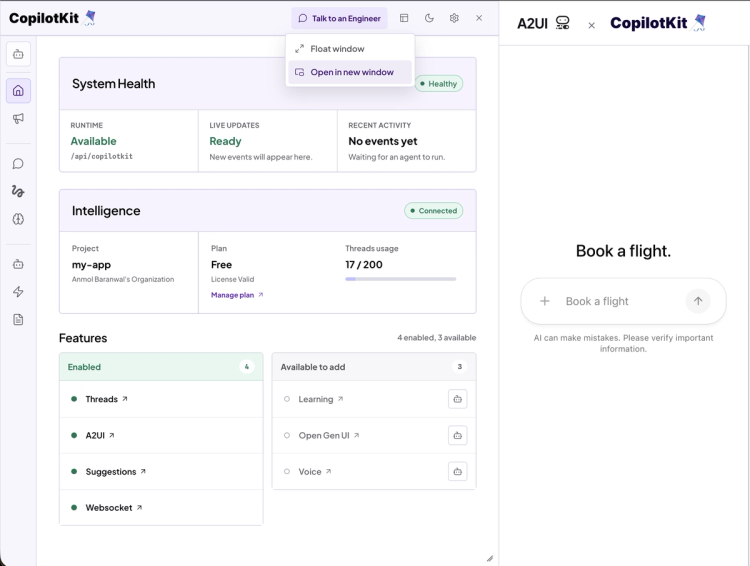
You can also hide the Inspector for a day from the hover panel, or for a week from Settings. It stays hidden for that host across browser restarts and localhost port changes, then comes back on its own.
We have made all the changes to improve the Developer Experience with Inspector.
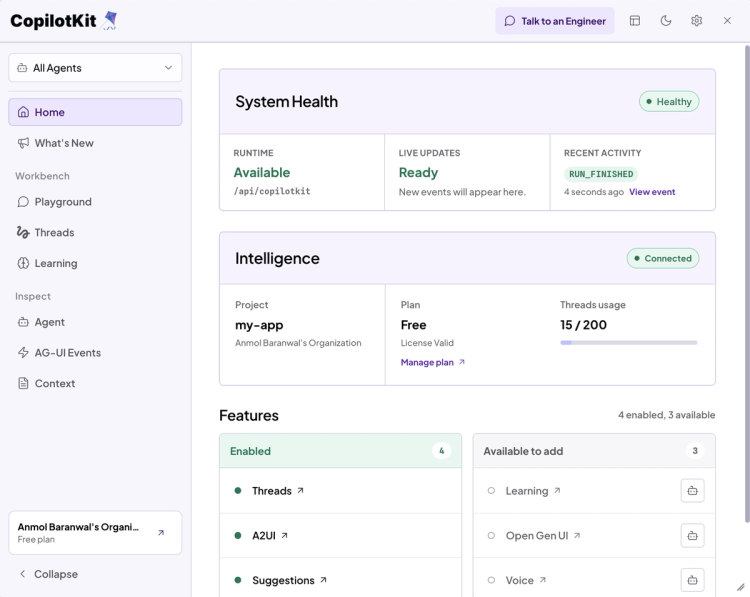
The Home page is now redesigned and shows the important things at a glance: system health, runtime status, Threads usage, and a features section. Settings has a Privacy section listing exactly what CopilotKit never collects.
Our engineering team put a lot of work into this release. If you're debugging something real with the Inspector, tell us what's still missing in our community or provide feedback on GitHub.
The Inspector works on its own, but if you want Rich Threads, Automatic Learning, usage analytics and more, connect your app to CopilotKit Intelligence.
Start on the free Developer tier, and the same platform can be self-hosted inside your own VPC or Kubernetes cluster when you need it.
The Intelligence quickstart takes about five minutes. Copy the prompt there and hand it to your coding agent, or do it manually.
Either way it's the same three steps: sign in, pick the project that will store your threads, and pass the Intelligence client to your runtime.
const intelligence = new CopilotKitIntelligence({
  apiKey: process.env.CPK_INTELLIGENCE_API_KEY!,
});

const runtime = new CopilotRuntime({
  agents,
  intelligence,
  identifyUser: async (request) => {
    const user = await authenticateApplicationUser(request);
    if (!user) throw new Error("Unauthorized");
    return { id: user.id, name: user.name };
  },
});
You'll know it worked when Home shows Intelligence connected and your first thread appears in Threads.
To enable threads, you can copy the prompt from the threads docs. Threads survive reloads, recover from disconnects, and resume across sessions and devices, with generative UI and multimodal inputs restored as part of the history.
You get two ways to build the UI. The prebuilt Threads Drawer gives you a conversation sidebar with switching, archive, delete and pagination already wired to your chat. Just add it beside CopilotChat and share the config provider:
<CopilotChatConfigurationProvider>
  <CopilotThreadsDrawer />
  <CopilotChat />
</CopilotChatConfigurationProvider>
Or go headless with useThreads and build the interface yourself, on the same persistence and replay underneath.
To enable learning, copy the prompt from the learning docs. A learning container groups threads from the same kind of work, like expense review or support quality.
Intelligence analyzes completed runs in that container, summarizes recurring patterns as Insights, and proposes a Skill when a pattern is reusable. Route threads to a container from your runtime:
const intelligence = new CopilotKitIntelligence({
  apiKey: process.env.CPK_INTELLIGENCE_API_KEY!,
  getLearningContainerId: ({ agentId }) =>
    agentId === "expense-agent" ? "expense-review" : undefined,
});
Once enough threads get collected, Intelligence analyzes them on its own. You can also hit Analyze threads to run it early. Each Insight shows the threads behind it, so you approve what you want and download those Skills into your agent.
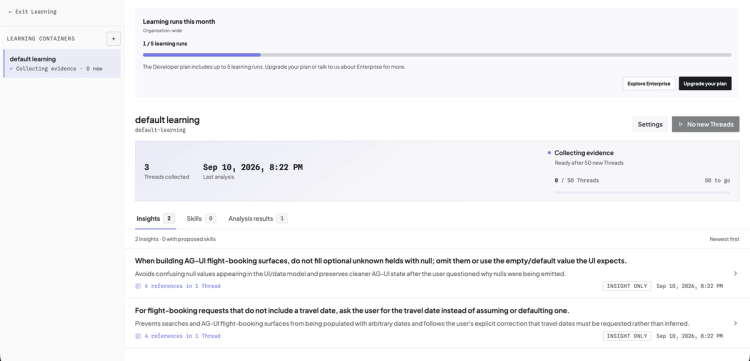
Memories are durable facts about a user, scoped to one user or shared across the project. They're grouped into three kinds:
You can read more about the setup and the useMemories hook in the memories docs.
You can track agent activity, reliability, tokens and memory for your project from the dashboard, filtered by anything from the last hour to a custom range.
That covers which tools your agent leans on, what share of runs completed cleanly, where the tokens are going, and how response time moves over the period.
The Inspector ships with CopilotKit and turns on in every development build without any setup.
Want to bring CopilotKit into your stack? Talk to our engineers and we'll help you set it up.
Follow CopilotKit on Twitter for updates. If you get stuck, reach out in the CopilotKit or AG-UI communities.
Subscribe to our blog and get updates on CopilotKit in your inbox.