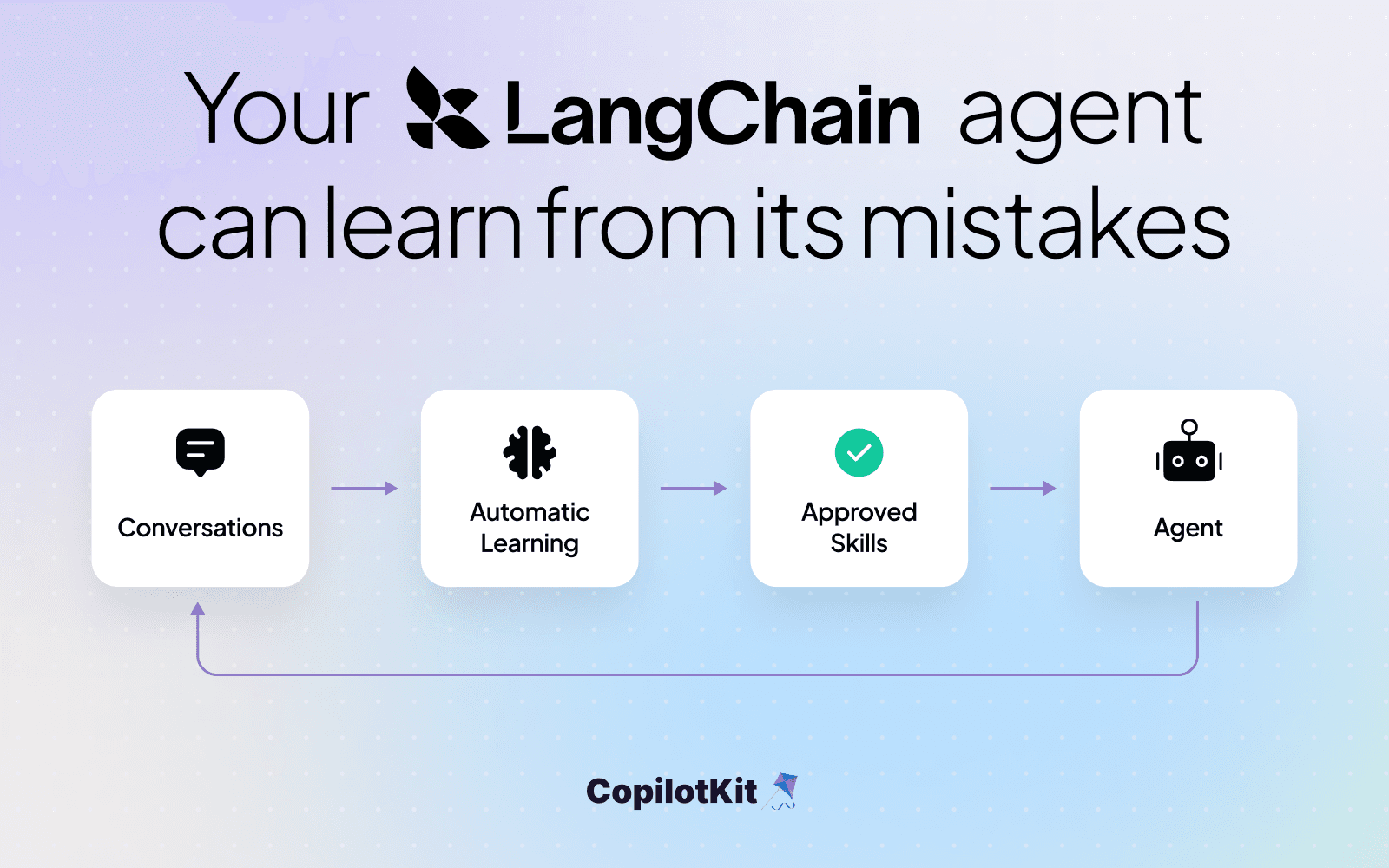
Add Automatic Learning to your existing LangChain app: turn conversations into Product Insights and deliver approved Skills automatically.
To make your existing LangChain agent self-improving, connect it to CopilotKit Intelligence, import its conversation history, start the first learning run, and configure Skill delivery. Review and approve the proposed Skills so your agent can use what it learns in future conversations.
Once people start using your LangChain agent, they start teaching you what it needs to do better. They correct an answer, ask for a different format, or explain a step the agent missed. You fix what you can, but the same requests keep showing up in new conversations.
Those conversations contain useful lessons. Turning them into improvements usually means reading through the history, finding a pattern, updating the agent's instructions, and checking whether the change helped. As usage grows, it's easy for good feedback to sit in a thread nobody gets around to reviewing.
Consider a weather assistant whose users keep asking it to put forecasts in a compact card. Each conversation records the same correction. That pattern suggests both a product improvement, making the card a default presentation, and a lesson the agent could apply to future weather requests.
CopilotKit Intelligence gives your existing LangChain app that learning loop. Product Insights helps you understand recurring requests and friction in your users' conversations. Automatic Learning turns reusable lessons into proposed Skills. You review the evidence and approve the instructions. Automatic skill delivery then makes those published Skills available to your agent on any future requests.
You can start with the agent you already have and the conversations you've already collected. Your coding agent handles the integration, and the Intelligence web app gives you a place to choose the evidence and review what the agent should learn.
This tutorial adds Product Insights and Automatic Learning to your existing LangChain application. You'll connect your app, import its conversation history, review the results, and deliver an approved Skill back to your agent. Choose a workflow your app already supports and use its conversations throughout the steps below.
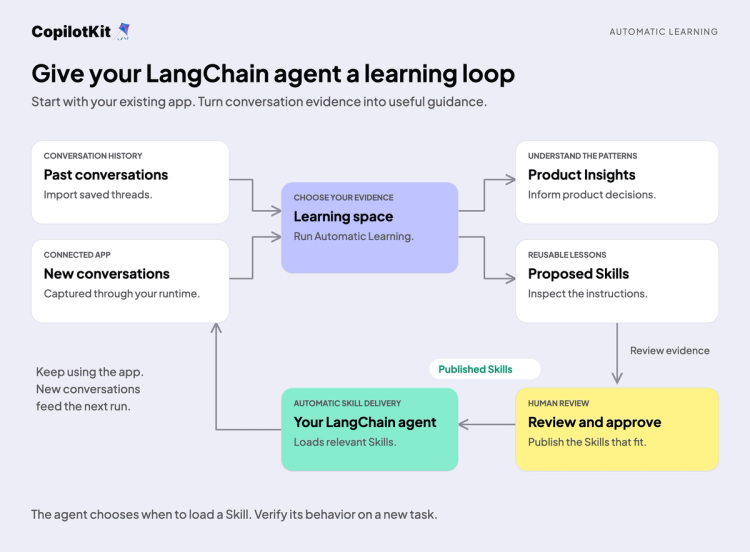
Imported history and new conversations feed Automatic Learning, with approved Skills delivered back to your agent.
You start the first learning run manually and set up Skill delivery once. After that, Automatic Learning analyzes the space nightly when it has at least 15 eligible threads. You can configure the time of the nightly run. You review and approve proposed Skills, and approved Skills are delivered to your agent automatically.
This walkthrough follows the process from connecting your app to reviewing and delivering a Skill. Then we’ll apply it to your existing LangChain application.
Open your coding agent in your existing project's folder and paste this:
Read https://www.copilotkit.ai/onboarding-prompts and help me get set up.That starts CopilotKit's guided onboarding. Your coding agent inspects the project, helps connect your existing agent and application to Intelligence, and guides you through creating your first Learning space.
During setup, sign in to Intelligence, select a project, and review the proposed integration work. The changes should preserve your existing agent and application.
A Learning space groups conversations about a particular kind of work. You'll also see it called a learning container in the CLI, SDK, and some docs. They're the same thing. Choose one workflow in your app and give its space a descriptive name and stable ID.
Before moving on, check that onboarding has connected Intelligence, created or selected your space, and configured new conversations to reach it. Automatic Learning needs to be enabled for your organization; the onboarding flow checks availability.
Send a message in the app, then open the saved thread in Intelligence or the local CopilotKit Inspector. You should be able to read the message you just sent. Keep the project and space handy; we'll use them throughout the tutorial.
Once the application is connected, its new conversations flow into Intelligence automatically through the connected runtime. You don't need to keep exporting them by hand. The importer in the next step brings in the history from before you made that connection.
Already connected? Use the setup prompt in the Automatic Learning guide to add Automatic Learning to your existing CopilotKit app. The Intelligence quickstart covers the manual connection steps.
Use saved conversations from the workflow you've chosen. Include examples where users corrected the agent, clarified what they wanted, or helped it complete the task.
For this import path, your saved conversations need to be available through a LangGraph Server or LangSmith Deployment. Have your deployment URL and credentials available to your coding agent, along with your Intelligence project's server-side configuration.
LangChain agents use LangGraph underneath. LangGraph Platform is now called LangSmith Deployment, while commands and SDK packages still use names such as langgraph. We'll use LangChain for the agent and keep the actual API names in code. LangChain's framework guide explains the layers.
Give your coding agent this task:
Help me import my existing LangChain agent's saved conversations into
the Intelligence project we just connected.

Inspect the LangGraph Server or LangSmith Deployment configuration.
Reuse the project's server-side Intelligence endpoint and API key.
Keep credentials out of your response.

Preview the import, check how source agents map to this application's
agents, and confirm how threads are attributed to their real users.
Show me the scope before importing. Then report imported, skipped,
and failed counts and help me inspect one imported conversation.
The underlying commands are short:
npx copilotkit@latest import --source langgraph --dry-run
npx copilotkit@latest import --source langgraph
The importer reads the source deployment and uploads the selected history to Intelligence. The dry run previews that work without uploading it.
Your coding agent should make these values available in the command's environment:
LANGGRAPH_API_URL: Your source deploymentLANGGRAPH_API_KEY or LANGSMITH_API_KEY: Source credentials, when requiredINTELLIGENCE_API_URL: The destination Intelligence API endpointCPK_INTELLIGENCE_API_KEY: The destination project's server-side keyUse the endpoint and key from your setup. Keep keys server-side and use your existing environment-loading mechanism. An agent mapping connects the source graph's identity to the agent you'll look for in Intelligence. If your deployment stores user IDs in a custom field, the importer also supports a --user-source locator.
When the import finishes, open a thread and inspect the messages. Check the report for skipped or failed conversations before assuming all the history arrived. Existing imports are skipped on a later import by default.
Your imported history and new app conversations are now available in the same Intelligence project.
Now switch to the Intelligence web app. Open the project and Learning space you created during onboarding, then choose Import threads.
Filter by the agent you mapped during import. Preview a conversation, select the relevant examples, and choose Review selection before importing them into the space.
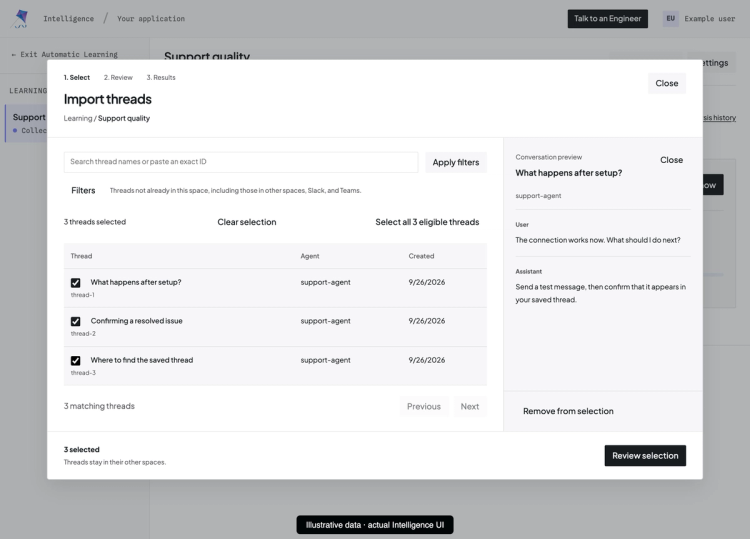
Filter conversations by agent, preview their messages, and select threads to add to the Learning space.
There are two steps here because they answer different questions. The CLI brings external history into your Intelligence project. Adding threads to a space decides which conversations Automatic Learning should analyze together.
Choose conversations about the same workflow that show useful outcomes and the corrections that led to them. A focused set makes the resulting lesson easier to assess. A thread can belong to more than one space, so adding it here preserves its other memberships.
Wait for history preparation to finish, then check the import results. This action prepares the evidence; the Automatic Learning run comes next.
Start your first Automatic Learning run manually and follow its progress under Analysis results. When it finishes, open the Insights and inspect the conversations behind them.
Review Product Insights for patterns in what users request, where they correct the agent, and which parts of the workflow cause friction. Follow the evidence back to the conversations before deciding what to change in your product.
Automatic Learning can also propose a Skill when the evidence supports reusable instructions. In the opening weather example, repeated requests for a card could inform a product decision about the interface and a Skill about response formatting. For your workflow, assess the proposed change against the outcome your users were trying to achieve.
A repeated correction is evidence of what your users need from the product.
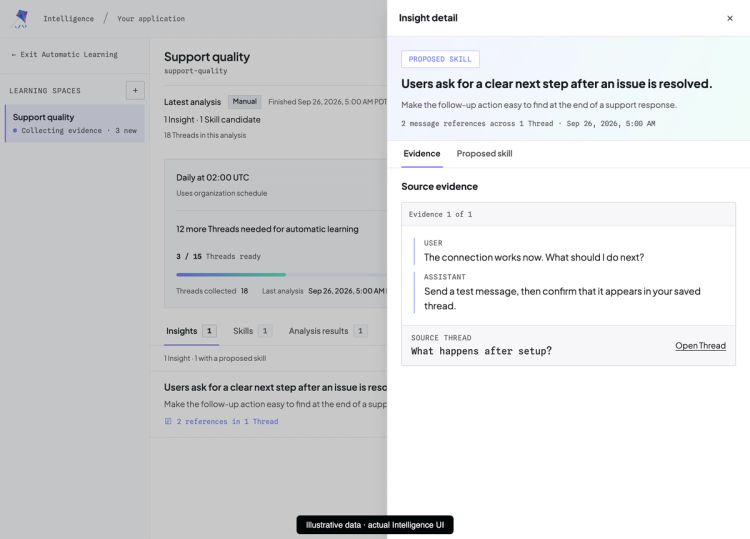
A Product Insight connects a recurring user request to the conversation that supports it.
Read the proposed Skill and the examples that support it. Does it capture the useful behavior? Is it appropriate for everyone in this space, or was one person asking for something unusual? Approve and publish the Skill when the instructions fit the workflow.
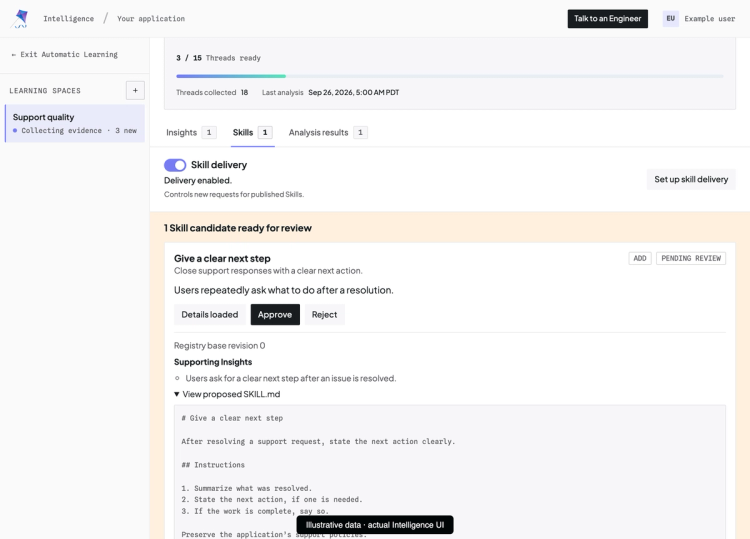
Review the proposed Skill’s instructions and supporting Insight before approving it.
Product Insights informs your product decisions; approved Skills give your agent guidance it can use. Some findings will lead to interface or workflow changes; others will become Skills. A useful analysis doesn't have to produce both.
The Product Insights overview explains how conversation evidence can inform broader product decisions.
Set up Skill delivery once for your agent. Open the space's Skills tab and check that Skill delivery is enabled. Choose Set up skill delivery, then Copy setup prompt, and paste it into your coding agent.
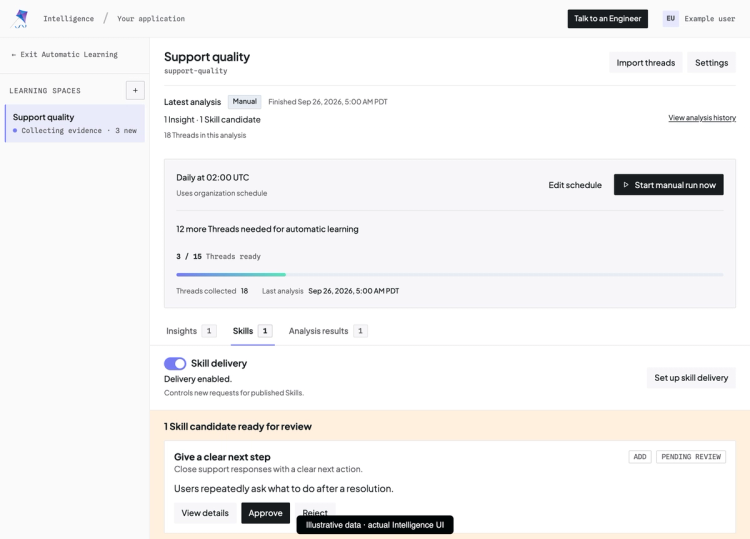
The Skills tab shows published Skills, the Skill delivery toggle, and the setup action.
The prompt includes the space ID. It asks your coding agent to inspect the framework, reuse your server-side Intelligence connection, preserve the agent's existing instructions and tools, and add the supported adapter.
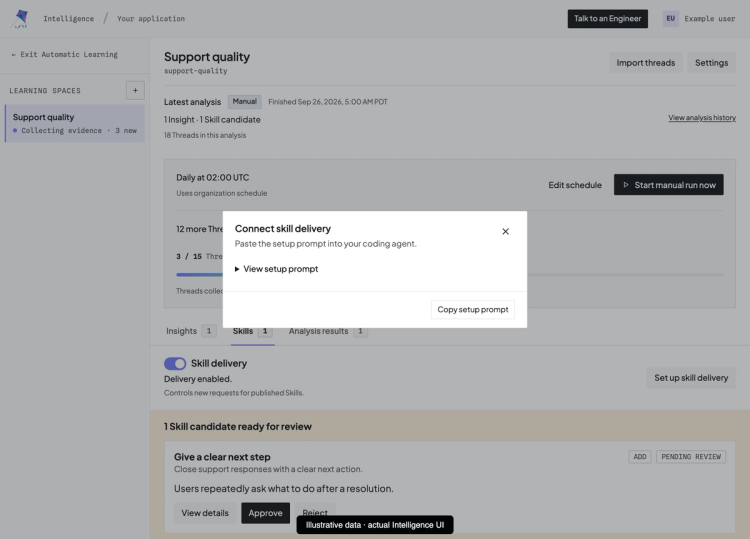
Copy the Learning space’s setup prompt to connect your agent to automatic skill delivery.
For a Python LangChain agent, add create_skill_registry_middleware to your existing configuration:
pip install copilotkit-intelligence-langgraphfrom copilotkit_intelligence_langgraph import create_skill_registry_middleware
from langchain.agents import create_agent
# In your application's async startup, using its existing server-side key:
skills = create_skill_registry_middleware(
container_id="your-space-id", # Replace with the space ID you created.
)
await skills.initialize()
agent = create_agent(
model=existing_model,
tools=existing_tools,
system_prompt=existing_instructions,
middleware=[*existing_middleware, skills],
)The existing_* names represent your application's current configuration. Keep those values and add the middleware to the agent you already run. Use async invocation (ainvoke or astream), and close the middleware with await skills.aclose() during shutdown. Your coding agent can place those lifecycle calls in the right parts of your application.
The complete Python example includes environment setup and supported versions. If your agent uses TypeScript, follow the TypeScript integration, which currently requires both the middleware and its wrapAgent wrapper. These adapters support native LangChain agents; a custom compiled graph needs its compatibility checked.
Leave the Skill revision unpinned to follow the latest published version. The adapter supplies a catalog of available Skills and tools for loading their instructions. Published updates become available on subsequent invocations after the adapter refreshes, without another download or agent-process restart.
Your agent's conversations can become instructions for its next task.
The agent you already built now has a way to use lessons from the people using it. You didn't have to build an analysis pipeline, a Skill review interface, or a delivery mechanism yourself.
Start a fresh invocation of your agent and give it another task that the approved Skill should help with. Use a new example from the same workflow, without repeating the correction the Skill is meant to address.
Check that the published Skill appears in the agent's catalog, that the agent calls copilotkit_load_skill, and that the response follows the approved instructions. If the Skill has supporting files, copilotkit_read_skill_file makes those available too.
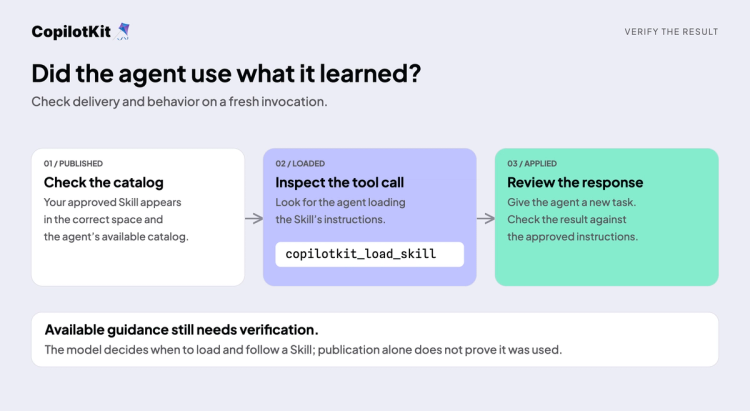
Verify that the Skill is published, loaded by the agent, and applied to a new request.
The model decides when to load and follow a Skill, so a newly approved Skill may not affect the first response you try. Look for both the skill-load call and the behavior described by the approved instructions. Together, they show that the agent used the lesson on this request.
If the behavior doesn't change, check the project and space IDs, publication status, delivery toggle, and whether the invocation loaded the Skill. The default freshness window is five seconds, and each invocation keeps its own snapshot. Test with a new invocation after refresh rather than expecting an in-progress response to change.
Once that works, keep using the connected application. New conversations continue to arrive in Intelligence, and your runtime's space assignment adds the relevant ones to the space. The delivery adapter handles the other direction: getting published Skills back to the agent.
The learning loop now runs automatically: new conversations flow into Intelligence, and Automatic Learning analyzes the space nightly when at least 15 threads are eligible. You can change the nightly run time in the web app. Keep reviewing the proposed Skills; once approved and published, they are delivered to your agent automatically, without repeating the setup.
Pick one workflow and a few conversations where someone had to explain the same thing more than once. Bring them into a Learning space and see what patterns emerge.
You can apply this process to support, document review, customer onboarding, or another workflow your app already handles. Start with evidence you understand well enough to judge, then check whether the resulting Skill helps on a new task.
Create an Intelligence account and use the onboarding prompt in step 1 to connect your app. The Automatic Learning guide covers setup and scheduling, and the Skill delivery guide has the framework integrations.
Want help making your own LangChain agent self-improving? Contact us to arrange a session with a CopilotKit engineer. Bring the agent you already have and one workflow you'd like it to handle better.
Subscribe to our blog and get updates on CopilotKit in your inbox.